

Installing the Angle Store Credit Memberships App on Shopify
Overview
The Angle Store Credit Memberships app by Angle Technology, Inc. allows Shopify merchants to manage and distribute store credit as part of a customer loyalty or membership program. This guide outlines the steps to install the app and the permissions it requires.Installation Steps
- Log in to your Shopify Admin Dashboard.
- Navigate to the Apps section in the left-hand menu, then click Add apps.
- Search for Angle Store Credit Memberships in the Shopify App Store.
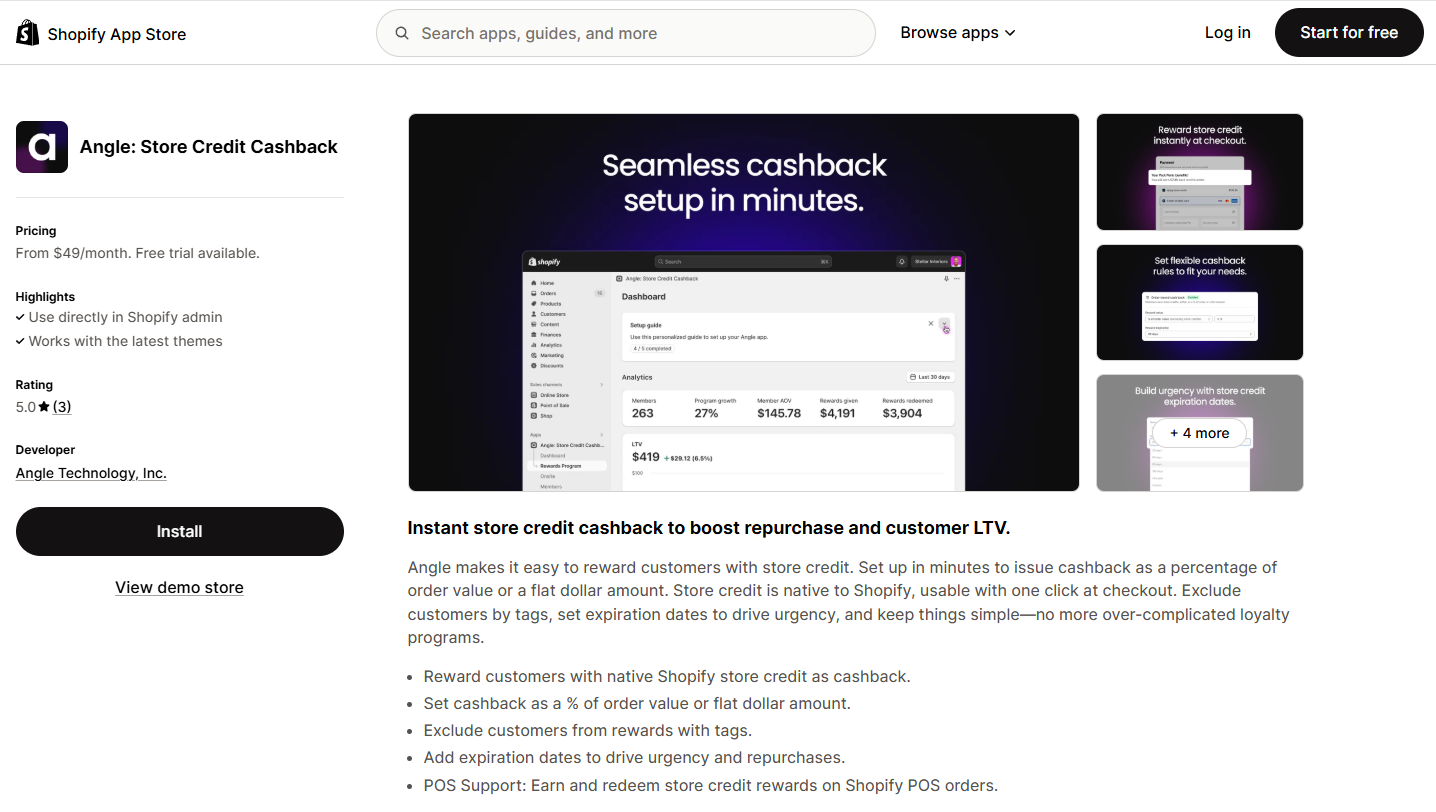
- Click on the app, then select Install app to proceed to the permissions page.
App Permissions
During installation, Shopify will display a detailed list of the data that the app will access. This is required to allow the app to function correctly.1. View Personal Data
- Customers: Name, email address, phone number, physical address, geolocation, IP address, browser and operating system.
- Store Owner: Name, email address, phone number, physical address.
2. View and Edit Store Data
| Permission Area | Access Details |
|---|---|
| Edit Customers | View and manage customer data including tags. Note: Customers shopping on Angle Store Credit Memberships may see customer tags you’ve added. |
| Edit Products | Access to products or collections. |
| Edit Orders | View and manage all past and future orders and returns. Note: Shopify has verified this permission is required for app functionality. |
| View and Sync Discounts | View discount codes and promotions. |
| Edit Store Credit | Manage store credit accounts and transactions. |
| Edit Online Store | Access and modify metaobjects and their definitions. |
| Edit Other Data | Modify price rules. |
For more details, you can click Learn more about custom storefront permissions and Learn more about app permissions during installation.
Completing Installation
After reviewing the required permissions:- Click Install to authorize the app and complete the installation process.
- The app will be added to your Apps list, and you will be redirected to its setup interface to begin configuring your store credit membership settings.