
Member Lookup POS Tile
Add the Angle Member Lookup tile to Shopify POS for one-tap wallet pass scanning and instant member identification at checkout.
The Member Lookup tile is a Shopify POS UI extension that lets staff scan a customer's Angle wallet pass QR code directly from the POS home screen. One tap opens the camera, one scan loads the member profile, and staff can immediately apply store credit, track qualified spend, and see tier status — without ever asking for an email.
This guide walks through pinning the Member Lookup tile to a Shopify POS device and using it at checkout.
What the tile does
The Member Lookup tile is powered by the Scan a member's wallet pass POS UI extension bundled with the Angle Store Credit Memberships app. When a staff member taps the tile, it opens a scanner view that recognizes any Angle wallet pass QR code (Apple Wallet or Google Wallet). On a successful scan, the matched customer is loaded into the current POS cart so their store credit balance, tier, and qualified spend are available for the rest of the transaction.
The Smart Grid on Shopify POS is configured per-device. Repeat the steps below on every iPad or iPhone where staff need the Member Lookup tile.
Prerequisites
| Requirement | Details |
|---|---|
| Angle app installed | The Angle Store Credit Memberships app must be installed on your Shopify store and at least one membership program must be active |
| Shopify POS | Shopify POS Pro or POS Lite on an iPad or iPhone with a working rear camera |
| Wallet passes configured | Tiers must have wallet passes configured with "Always show QR code" enabled |
| Staff permissions | Staff using the tile need the standard POS permissions for applying store credit as a payment method |
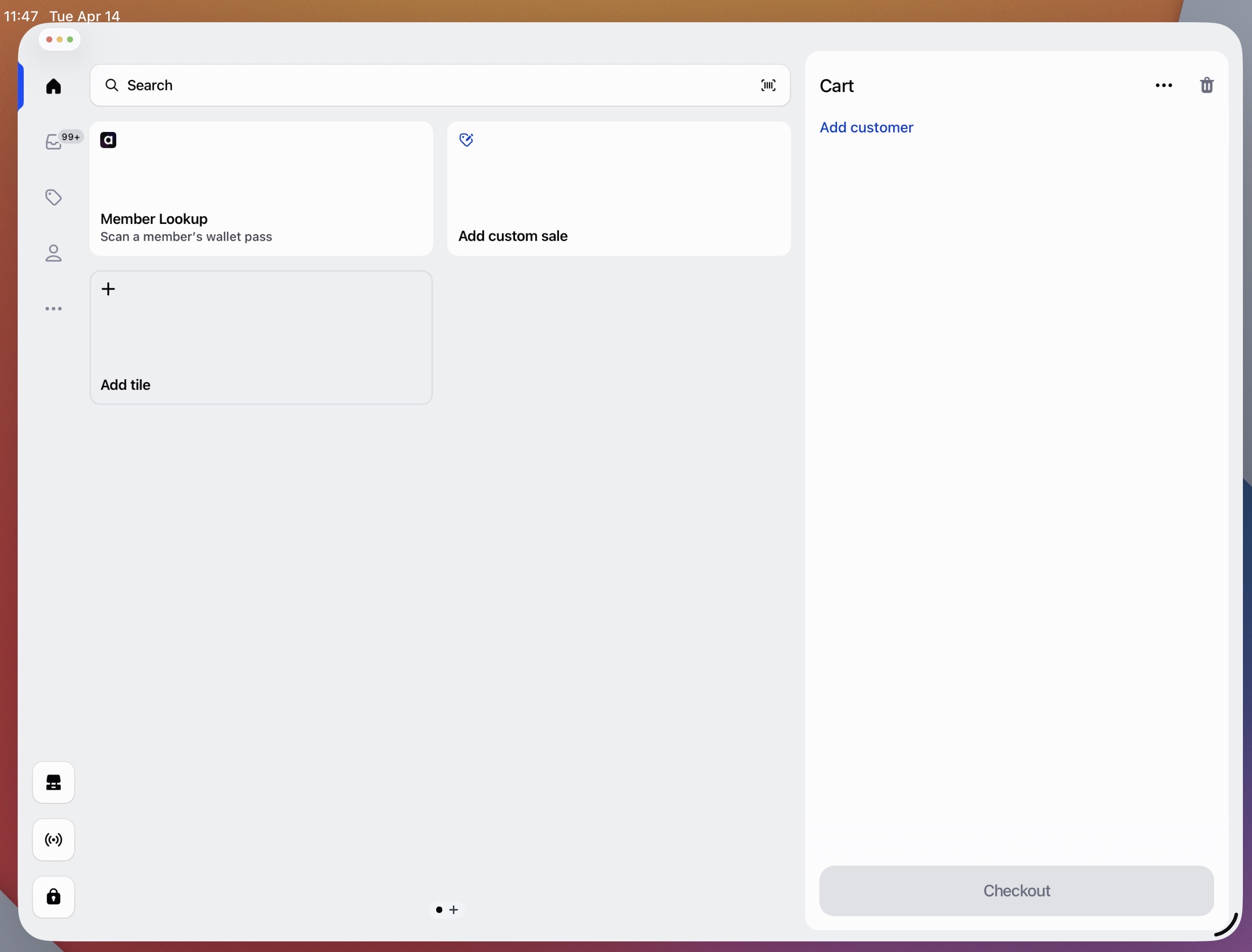
Step 1 — Tap Add tile on the POS home screen
From the Shopify POS home screen, tap an empty Add tile slot (or edit the Smart Grid and tap the +). This opens the tile-type picker.
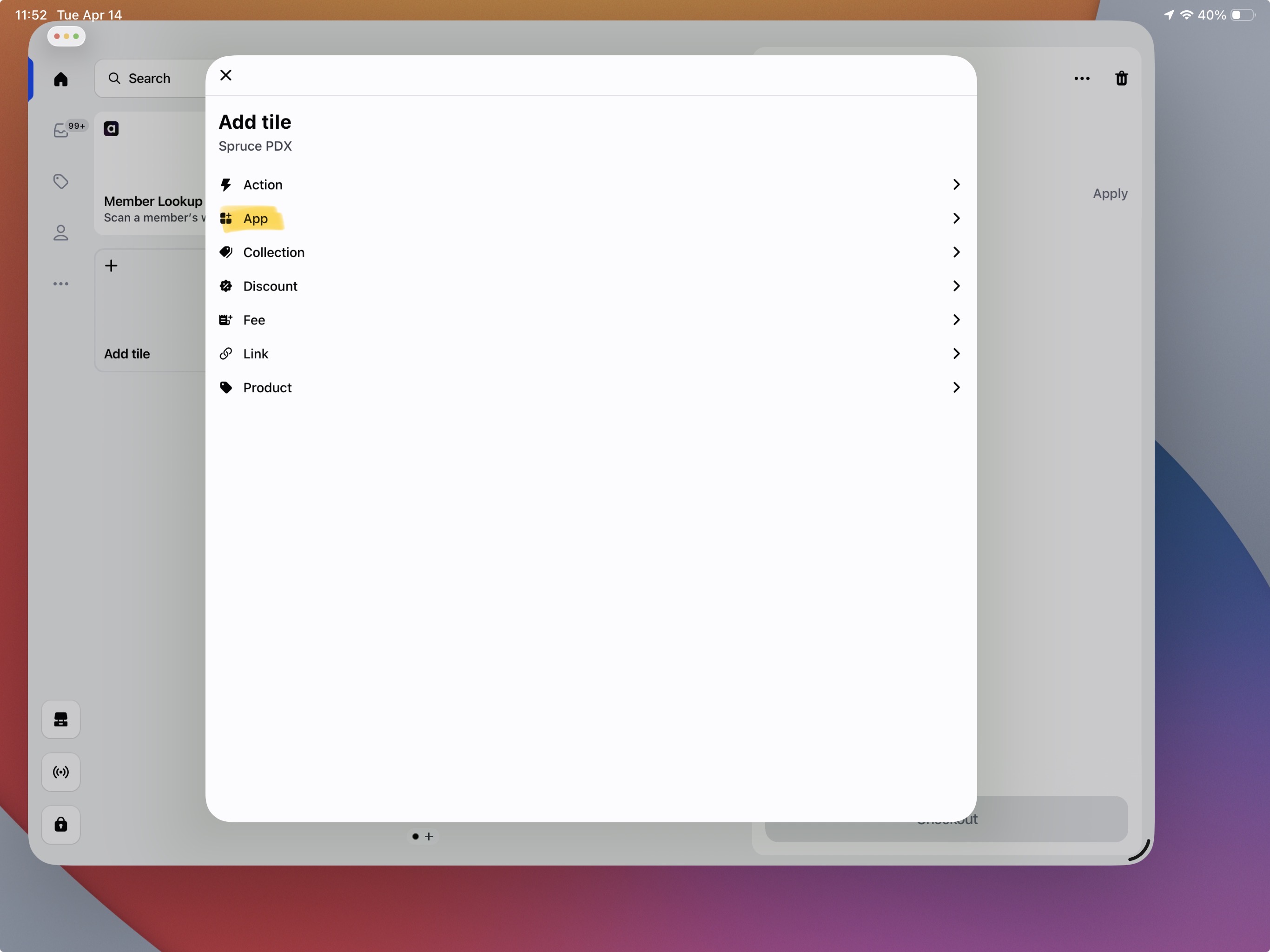
Step 2 — Choose App
In the Add tile menu, choose App. This surfaces the list of installed apps that expose POS extensions.
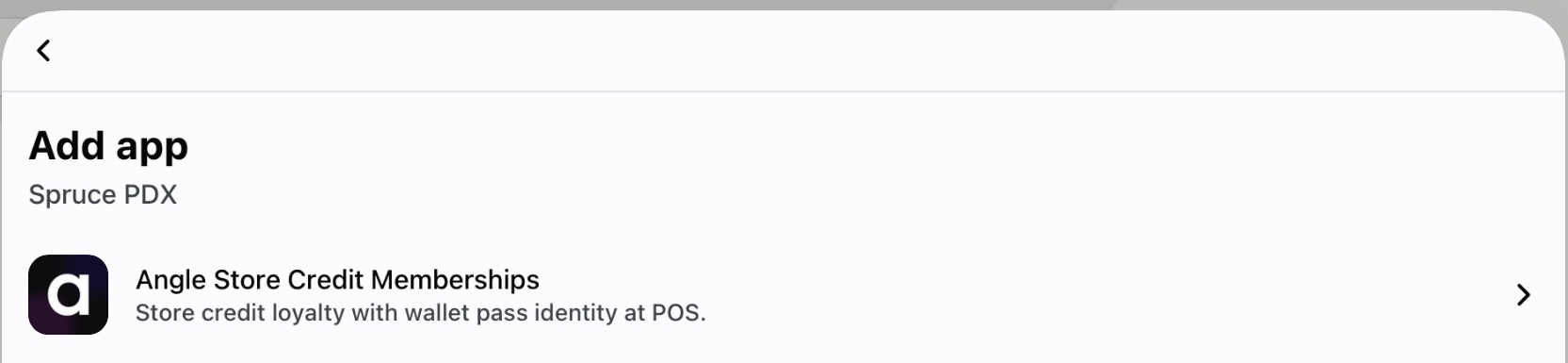
Step 3 — Select Angle Store Credit Memberships
Choose Angle Store Credit Memberships from the app list. It's described as "Store credit loyalty with wallet pass identity at POS."
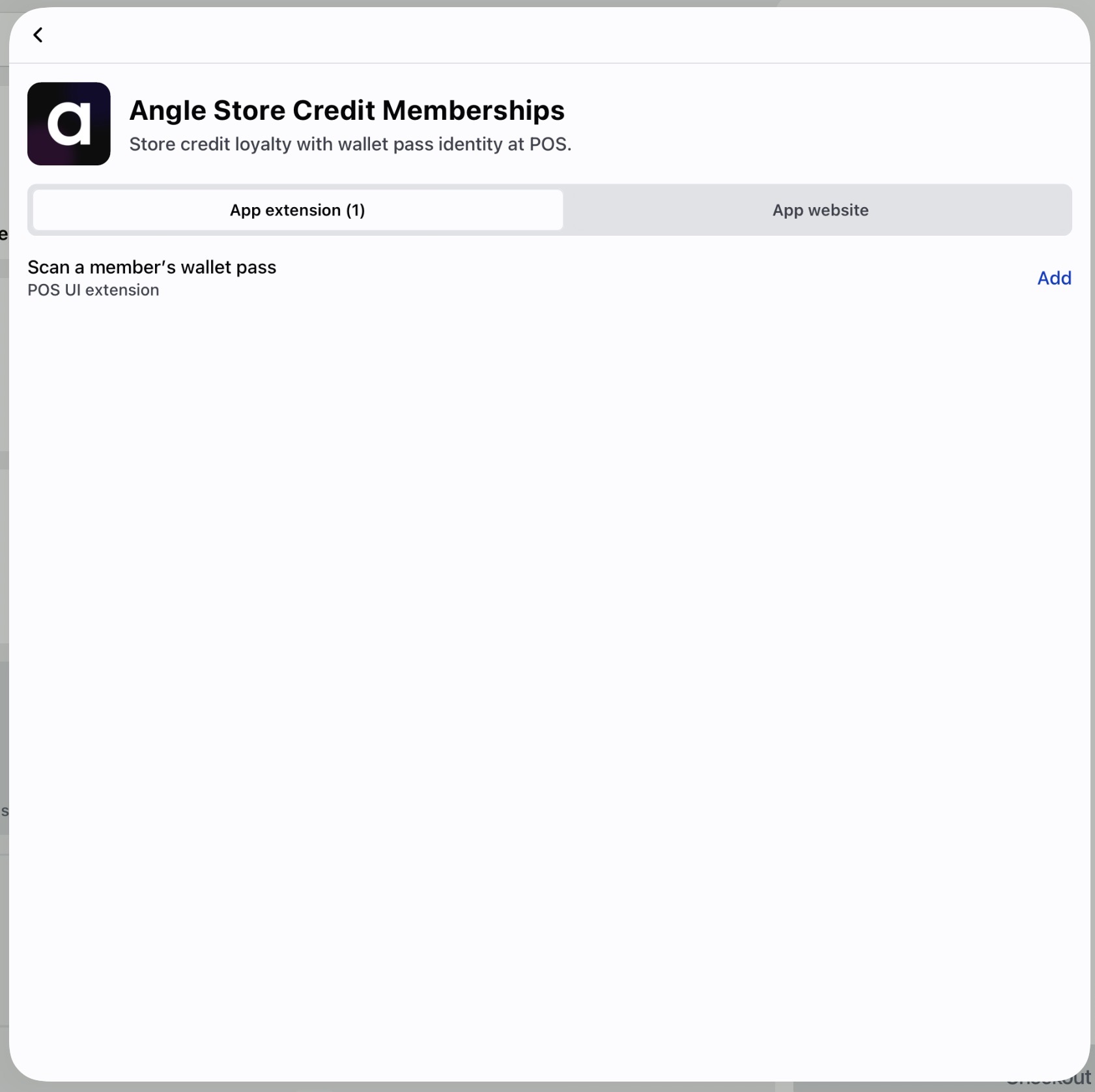
Step 4 — Add the "Scan a member's wallet pass" extension
On the App extension (1) tab, tap Add next to Scan a member's wallet pass (labeled POS UI extension). The tile is now pinned to your POS home screen with the Angle logo and the subtitle "Scan a member's wallet pass."
We recommend renaming the pinned tile to Member Lookup so staff recognize it instantly at the register.
Step 5 — Scan a wallet pass at checkout
Tap the Member Lookup tile on the POS home screen. The Angle scanner opens in a modal with the rear camera active. Ask the customer to open their Angle wallet pass in Apple Wallet or Google Wallet and hold the phone up to the camera. On a successful scan, the customer is attached to the current cart — tap Apply to confirm. Available store credit, pending credit, tier, and qualified spend are now associated with the transaction.
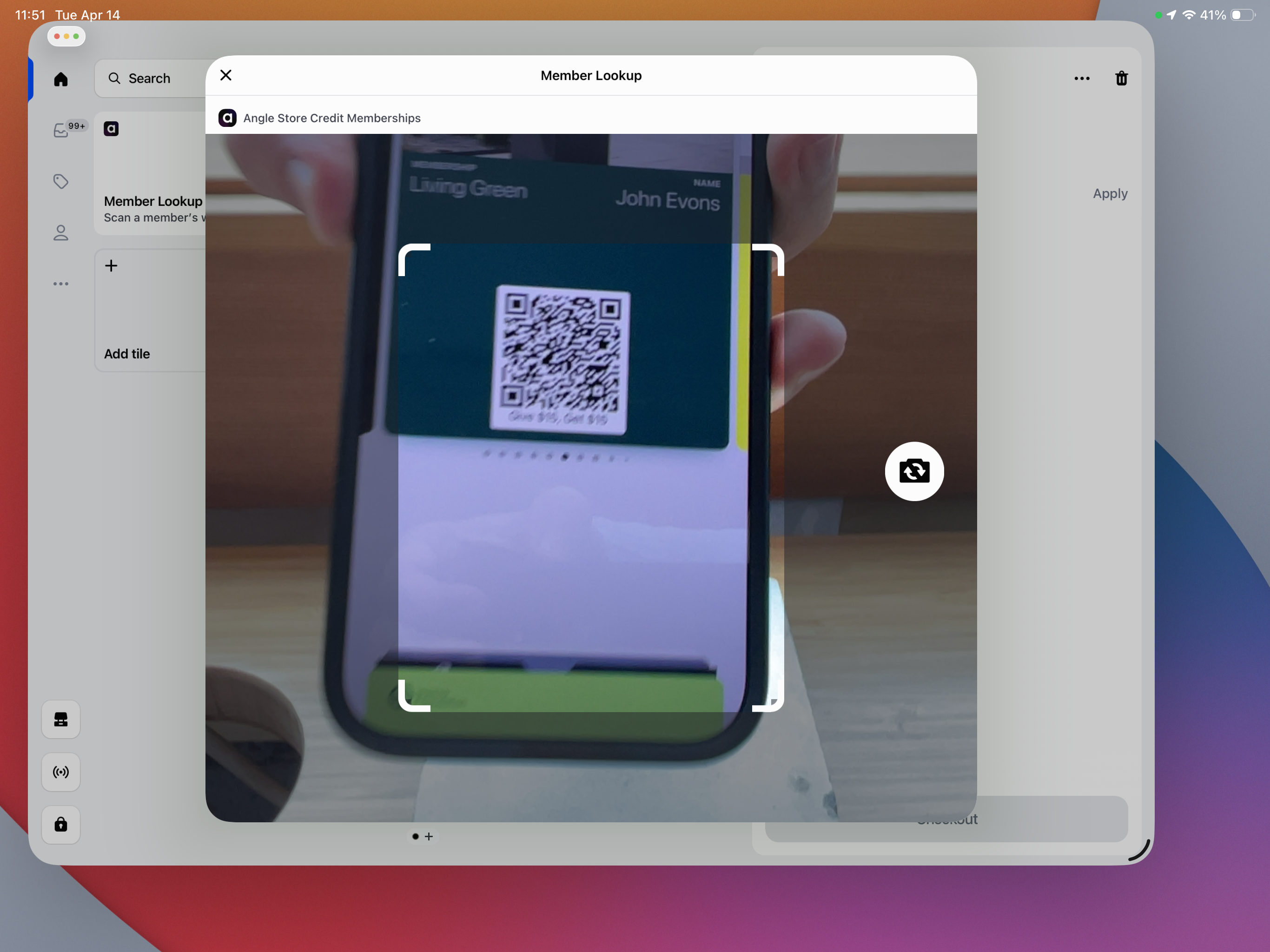
From here, add products to the cart as normal. Apply the customer's available store credit as a payment method at checkout. Any cashback earned on the order is issued after checkout, subject to your program's reward delay.
If the customer hasn't downloaded their wallet pass yet, you can still look them up by Add customer → search by email in the cart. Once they install their pass from the post-purchase email or Customer Account Extension, future visits will work with a single scan.
Troubleshooting
| Issue | Fix |
|---|---|
| Angle Store Credit Memberships doesn't appear in the App tile list | Confirm the Angle app is installed on the Shopify store and that the staff member is signed into the same store in POS |
| Scanner opens but won't recognize the QR code | Ensure the wallet pass has "Always show QR code" enabled in the wallet pass editor; clean the camera lens; move to better lighting |
| Scan succeeds but no member is returned | The wallet pass may belong to a different Shopify store. Confirm the customer is a member of this program |
| Tile is missing on one iPad but visible on another | Smart Grid layouts are per-device. Repeat Steps 1–4 on each POS device that needs it |
Related
- Shopify POS Integration — end-to-end overview of POS store credit redemption
- Wallet Pass Design — configuring QR codes and pass branding
- Checkout Extension — the online equivalent of the POS scan workflow